


Most small business Google Ads waste comes from fake conversion signals, quiet network and location defaults, and unanswered post-click leads rather than weak ad copy.
Follow these four audit checkpoints in order before you raise your monthly ad budget or replace your marketing team.
A Google Ads audit is a structured inspection of your ad account, tracking setup, campaign settings, search terms, bidding rules, and post-click lead handling to see how much of your budget buys real customer inquiries and how much leaks into irrelevant clicks. For a small service business, you do not need to be a media buyer to run a useful check. You need direct login access, sixty quiet minutes, and the right sequence so you do not judge ad copy or bids on top of broken conversion data.
In a decade of practical experience running agency teams and advising founders, I have opened plenty of Google Ads accounts where the monthly PDF report looked terrific. Click-through rates were green. Conversions were climbing. Cost per conversion was falling. Yet the owner’s calendar had empty slots and the bank balance felt tighter every quarter. When we looked inside the live account instead of the slide deck, “conversions” turned out to be homepage loads, half the Search budget was quietly firing on mobile apps or out-of-state browsers, and real phone calls from ads were ringing out during lunch.
This guide walks you through the exact eight-layer Google Ads audit checklist I use when an owner asks me why their paid search spend is not turning into jobs. If you want to evaluate the broader retainer, contract, and staffing relationship around your marketing vendor first, pair this page with my guide to a digital marketing agency audit. Open this page when you are ready to look straight inside Google Ads itself.
Why Small Business Google Ads Accounts Quietly Bleed Money
Small business Google Ads accounts rarely fail because of one obvious error. They bleed money because default platform settings favor broader reach over strict local buyer intent, automated bidding chases whatever conversion signal it is fed, and nobody reconciles Google Ads reports against real leads inside the CRM.
Three forces push almost every neglected account in the same direction.
Platform defaults reward expansion, not restraint
Google Ads is built to serve enterprise advertisers with massive budgets alongside a local dental clinic or HVAC contractor spending a few thousand dollars a month. When someone creates a new Search campaign quickly, several default switches lean toward wider distribution: showing Search ads on the Google Display Network, opting into Search Partners, targeting people who merely show “interest” in your city, and accepting automated recommendations. None of those checkboxes is hidden, yet leaving them on in a tight local market can burn a painful share of your daily budget before noon.
Optimization drifts toward easy platform numbers
Marketers under pressure to show progress naturally gravitate toward numbers that move fast: impressions, clicks, Google’s internal “Optimization Score,” or loosely defined conversions. If an account counts every visit to a contact page or every thirty-second session as a conversion, Google’s bidding algorithm happily finds cheap clicks from people who love reading pages and never buy anything. The dashboard celebrates while your sales pipeline starves.
Paid ads and CRM operations sit in separate rooms
In most small companies, one person or vendor buys the clicks and a completely different team answers the phone, checks web forms, and updates the CRM. Neither side sees the full picture. The ad manager says, “We sent forty leads.” The front desk says, “Those people never picked up or wanted a service we do not offer.”
Early in our agency transition, I solved that split internally by training one capable department champion deeply across both paid ads (PPC and Meta) and our GoHighLevel CRM workflows, and then empowering him to train and supervise the specialists underneath him. Once the person overseeing paid search looks directly at call recordings, missed-call logs, and booked appointments inside the CRM every week, excuses disappear on both sides. A real ppc audit always crosses that bridge from the ad account into the lead log.
The Eight-Layer Google Ads Audit Sequence (And Why Order Matters)
Audit a Google Ads account from foundation to post-click handoff in eight fixed layers: ownership and controls, conversion tracking, campaign settings, keywords and search terms, bidding and budgets, ad assets, landing page fit, and CRM lead follow up. Skipping straight to keywords or ad copy wastes your time if layers one and two are broken.
Think about why sequence matters. Suppose you look at your Keywords tab first and pause three expensive keywords because they show zero conversions. Two hours later you check Goals and discover your phone-call conversion tag stopped firing six weeks ago, while a harmless newsletter signup remained active. You just paused the exact high-intent terms that were making your phone ring. Auditing top to bottom prevents that mistake.
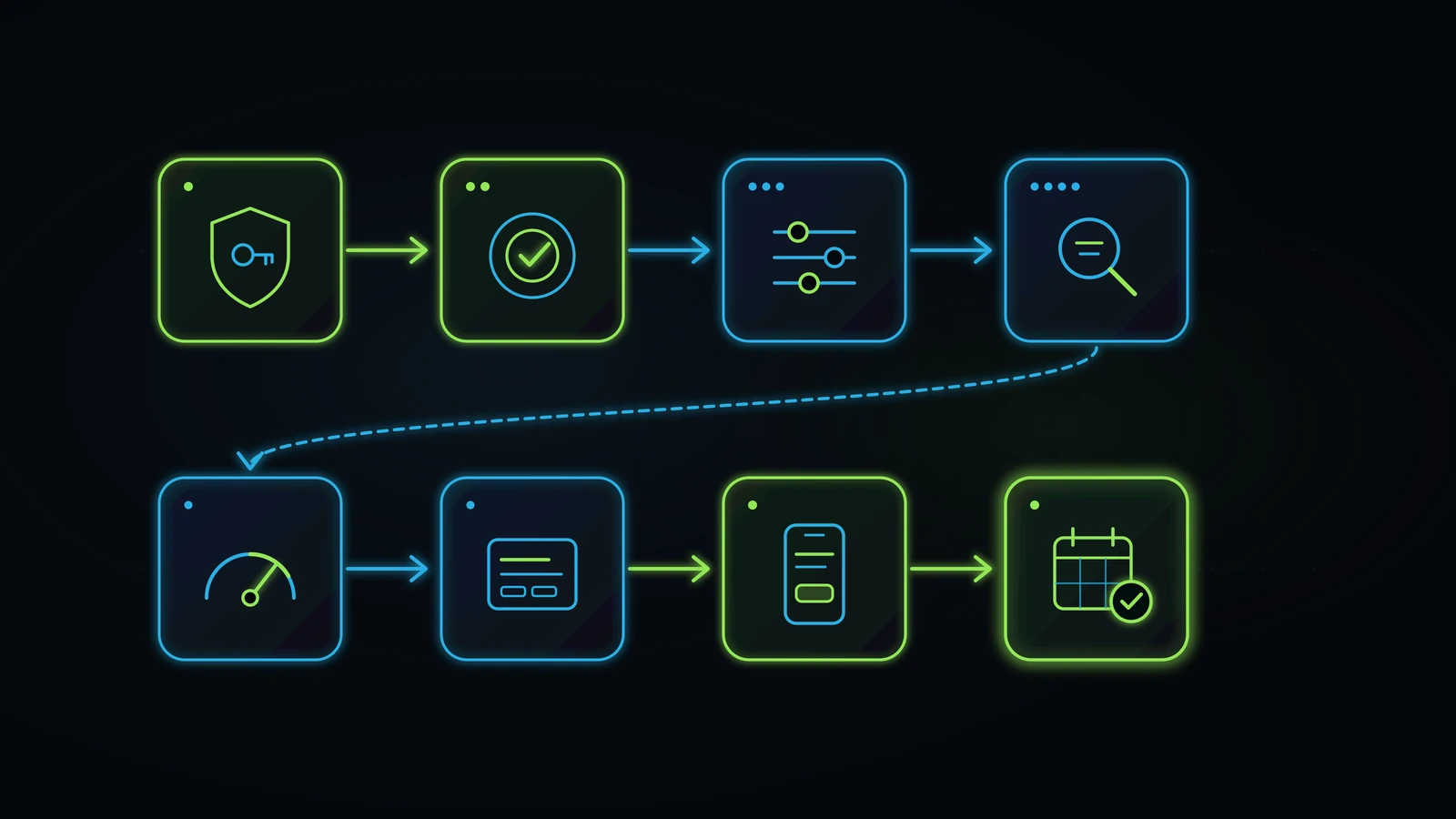
Use the table below as your master Google Ads audit template before diving into each screen.
| Audit Layer | Where to Look in Google Ads | Core Question You Are Answering | Classic Red Flag |
|---|---|---|---|
| 1. Ownership and Controls | Admin > Access and security; Billing; Recommendations > Auto-apply | Do I own this account, pay Google directly, and control automated edits? | Agency owns the admin login, or Google Auto-Apply is rewriting campaigns weekly |
| 2. Conversion Tracking | Goals > Conversions > Summary | Are “Primary” conversions real phone calls, forms, and bookings, counted once per lead? | Page views, button clicks, or double-counted reloads marked as Primary |
| 3. Campaign Settings | Campaigns > Settings (Networks, Locations, Ad schedule) | Are Search ads restricted to real searchers inside my actual service area during covered hours? | Display Network checked on Search, or Location set to “Presence or interest” |
| 4. Keywords and Search Terms | Campaigns > Insights and reports > Search terms; Negative keyword lists | What literal phrases triggered my ads over the last 30 to 90 days? | Competitor names, job seekers, DIY queries, or cities you cannot serve |
| 5. Bidding and Budgets | Campaigns > Columns (Bid strategy, Search lost IS budget/rank) | Does the bidding rule fit our real monthly conversion volume? | Target CPA set unrealistically tight on an account with five leads a month |
| 6. Ad Copy and Assets | Campaigns > Ads; Campaigns > Assets | Does every ad match the search group, filter bad fits, and include call/sitelink assets? | Generic ads sending every click to the homepage instead of a service page |
| 7. Landing Page Fit | Final URLs tested on a real mobile phone | Can a visitor on a phone see what we do, trust us, and call or book in ten seconds? | Slow mobile load, buried phone number, or a seven-field form above the fold |
| 8. CRM and Phone Handoff | CRM pipeline, call logs, speed-to-lead timestamps | Did the conversions reported in Google Ads become answered calls and tracked outcomes? | Paid calls ringing out or web leads waiting until tomorrow for a reply |
Layer 1: Account Ownership, Billing, and Auto-Apply Controls
Start your google ads account audit by confirming three administrative facts: your company owns administrative access to the account ID, your company’s payment method pays Google directly, and Auto-Apply Recommendations are turned off for any setting that expands spend, alters match types, or rewrites ads without human review.
Admin access and direct billing
Open Google Ads, click Admin (or Tools and settings in older views), and open Access and security. Check the Users tab and the Managers tab.
Your own business email domain should sit on the Users list with Admin permissions. If an external agency or freelancer manages your campaigns, they should connect through their Manager Account (MCC) under the Managers tab, with your company retaining administrative ownership. Never run years of paid search inside an account owned solely by a vendor who bills you one bundled lump sum for media plus management. When your own card pays Google directly, you see every dollar of actual ad spend on your statement, separate from any management fee, and you keep your historical data if you ever part ways.
Change history and Auto-Apply Recommendations
Next, open Change history for the last 30 and 90 days. Filter changes by user. You are looking for two patterns.
First, is a real human actively working on the account? If you pay a monthly management retainer and Change history shows zero human edits for sixty days, nobody is minding the store.
Second, are dozens of edits attributed to automated recommendations? According to official Google Ads Help documentation on managing auto-apply recommendations, turning on auto-apply allows Google to implement selected optimization changes automatically across your account, and you can inspect or disable them under Recommendations > Auto-apply (including the History tab).
In a small business account, letting automated rules upgrade keywords to broad match, add new keywords, adjust CPA targets, or rewrite ad text without a human reviewing business fit is like giving a software vendor a signed blank check. I saw the exact same lesson when we started building AI workflows inside our own operations: letting a machine improvise without explicit human boundaries costs money. Uncheck automatic keyword expansion, match-type upgrades, bid-strategy switches, and auto-generated ad text. Keep humans accountable for every structural change.
Layer 2: Conversion Tracking Audit (Are You Feeding Google Real Leads or Fake Clicks?)
Open Goals > Conversions > Summary and verify that only genuine bottom-line inquiries (qualified phone calls, submitted quote or contact forms, and completed appointment bookings) are set to Primary, with their count rule set to One per click rather than Every. If anything softer sits in Primary, your reported cost per lead cannot be trusted.
Every automated bidding tool in Google Ads learns from whatever you mark as a Primary conversion. Official Google Ads Help guidance on different ways to track conversions outlines tracking across websites, phones, apps, and offline imports. The platform gives you flexible tracking tools, which means it will faithfully optimize toward terrible signals if someone sets them up poorly.

Primary versus Secondary conversion actions
Read every active row in your Conversions Summary table and check the Action optimization column.
- Belongs in Primary (for lead-generation and service businesses): Completed lead form submission (verified on an actual thank-you state or form-submit event), inbound phone calls from ads or website call tracking that cross a meaningful duration threshold (for example, 45 to 60 seconds so wrong numbers and immediate hang-ups do not count as leads), and confirmed calendar bookings.
- Belongs in Secondary (observation only) or removed: Homepage visits, “Contact Us” page loads before the form is sent, scroll depth, time on site over sixty seconds, chat widget opens where nobody left a number, direction clicks if you are not a walk-in retail storefront, and unverified tap-to-call button clicks on mobile where half the callers never complete dialing.
Marking an action Secondary keeps the data visible in the “All conv.” column if your marketer wants to observe micro-steps, while keeping it out of the main Conversions column and stopping Smart Bidding from chasing window shoppers.
Count settings (“One” versus “Every”) and duplicate tags
Click into each Primary conversion action and inspect the Count setting.
For e-commerce stores, counting Every purchase makes sense because two orders from one customer equal twice the revenue. For a plumber, law firm, med spa, or B2B consultancy, counting Every form event is an accounting error. If one anxious prospect submits your form, refreshes the thank-you page on their phone, and clicks back later that evening, “Every” records three conversions from one person. Set lead-generation conversion actions to One.
While you are there, check the Status column for “Inactive,” “No recent conversions,” or duplicate legacy tags (for instance, an old Universal Analytics import firing alongside a new GA4 import and a direct Google Ads tag for the exact same form). Duplicate Primary tags make a $120 cost per lead look like a $60 cost per lead overnight without adding a single customer.
Cross-checking Google Ads conversions against your CRM
Before leaving Layer 2, perform the simplest reality test in marketing. Pull the total Primary conversions Google Ads claims over the last 30 days. Then open your CRM, call-tracking log, and booking calendar for the same 30 days and count real people tagged from paid search.
Minor attribution differences always exist because of cookie consent, cross-device searches, or direct call callbacks. A small gap is normal. When Google Ads reports 85 conversions and your CRM contains 14 real inquiries, you do not have a mysterious attribution nuance. You have fake or duplicated conversion tracking, and fixing it is your single highest-return move.
Layer 3: Campaign Settings That Quietly Drain Small Business Budgets
Inspect Settings inside every active Search campaign and check three levers immediately: uncheck Include Google Display Network, review or uncheck Include Google search partners, and switch Location options from “Presence or interest” to Presence: People in or regularly in your included locations.
These three settings take less than five minutes to audit across a typical small-business account, and they routinely explain why clicks look cheap while leads look awful.

Search Network versus Display Network and Search Partners
Open a Search campaign, click Settings, and expand Networks.
Official Google Ads Help documentation on the Google Search Network distinguishes Google’s own search sites from non-Google search partner sites and separate Display placements. When Include Google Display Network is checked inside a Search campaign, Google can take your text-search budget and spend leftover or opportunistic impressions across banner slots on millions of websites and mobile apps. People browsing a flashlight app or recipe blog are not typing “emergency roof leak repair” into Google. If you ever want Display remarketing, run it in its own dedicated Display campaign with strict placement controls and its own small budget. Never blend Display into a Search campaign.
For Google search partners, segment your campaign table before guessing (Segment > Network (with search partners)). Compare cost per real conversion on Google Search versus Search Partners over the last 90 days. Occasionally Search Partners performs fine; far more often on small local accounts, it brings lower-intent clicks with murky placement visibility. If Search Partners eats budget without converting at a comparable cost, uncheck it.
Location options: “Presence” versus “Presence or interest”
Stay inside Campaign Settings and expand Locations > Location options.
According to Google Ads Help on advanced location options, the default target option is Presence or interest, which reaches people physically in your targeted locations as well as people outside those locations who show interest in them, whereas Presence restricts ads to people physically in or regularly in your targeted locations.
“Presence or interest” makes sense for a resort hotel in Miami selling rooms to travelers sitting in Chicago. For a local HVAC company, chiropractor, roofing contractor, or regional accounting firm that can only serve customers inside its metro or state, “Presence or interest” leaks money to out-of-state researchers, competitors checking ads from other cities, and overseas traffic reading about your market. Switch local and region-bound campaigns to Presence, and verify what already slipped through by opening Locations > Matched locations (viewed by country, state, and city). Seeing clicks billed from three time zones away ends any debate instantly.
Ad schedule and after-hours call campaigns
Check Audiences, keywords, and content > Ad schedule (or the left menu Ad schedule view). Ask one operational question: Does our ad schedule match our ability to answer?
If you run call-only ads or push mobile click-to-call extensions aggressively at 9:30 PM on Sunday when your phones go straight to a generic voicemail box, you are paying premium auction prices to frustrate buyers who will simply call the next listing on Monday morning. Either tighten your ad schedule around hours when a real person or a well-tested AI receptionist for small business answers immediately, or route after-hours traffic to a clear booking form with instant text confirmation.
Layer 4: Keywords, Match Types, and the Search Terms Report
Open Insights and reports > Search terms for the last 30 to 90 days and sort by Cost descending. Your Keywords list only shows what you asked Google to bid on; the Search Terms report exposes the exact queries people typed when Google charged you.
Official Google Ads Help documentation on the search terms report notes that it displays a list of visible search queries that triggered your ads and resulted in clicks or impressions, subject to Google’s privacy thresholds. Even with privacy-hidden low-volume queries, the visible rows sorted by spend almost always tell the truth within ten minutes.

Five waste buckets to hunt in your Search Terms report
Scan the top fifty highest-spend search terms and highlight anything falling into these five buckets:
- Unintended competitor brand names: Paying $18 a click when someone types a rival clinic’s exact name and phone number simply to cancel their Tuesday appointment. Unless you run a deliberate, carefully budgeted competitor campaign with tailored comparison copy, accidental competitor matching is pure waste.
- Job seekers and career queries: Clicks containing words like jobs, hiring, salary, career, internship, certification, resume, or training course. Service firms bidding broadly on “bookkeeping services” or “plumbing company” pay for dozens of job hunters every month when nobody blocks employment terms.
- DIY, free, and academic searches: Queries containing free, DIY, how to, template, pdf, reddit, youtube, cheap, meaning, or definition when your offer is a paid done-for-you service.
- Wrong service or sub-specialty: A personal injury attorney paying for family-law divorce clicks, an aesthetic med spa paying for insurance-covered dermatology rash clicks, or a commercial IT firm paying for broken laptop screen repairs.
- Out-of-area cities and states: Searches explicitly naming neighborhoods, suburbs, or states you refuse to travel to.
Broad match discipline and negative keyword lists
Look at the Match type column on your active keywords. Keywords without quotation marks or brackets run on Broad match, while "phrase match" and [exact match] apply tighter semantic boundaries.
Google pushes Broad match paired with Smart Bidding heavily. On a large national account with hundreds of clean monthly conversions and a seasoned analyst pruning negatives weekly, Broad match can uncover profitable variations. On a small service business spending $50 to $150 a day with ten or fifteen leads a month, unguarded Broad match behaves like a firehose aimed at the sidewalk. It stretches “commercial cleaning service” into car washes, dry cleaners, and vacuum cleaner parts.
Open Tools > Shared library > Exclusion lists (Negative keyword lists). Check two things:
- Does at least one structured negative keyword list exist and apply to every Search campaign (blocking job terms, DIY terms, freebie hunters, and irrelevant sister services)?
- When was the last negative keyword added? If nobody has added a single negative keyword in ninety days, your Search Terms report is funding Google’s quarterly earnings instead of yours.
Layer 5 and Layer 6: Bidding Strategy, Budget Pacing, and Ad Assets
Audit your bidding strategy and ad assets by matching automation level to actual monthly conversion volume, separating budget constraints from ad-rank problems, and ignoring vanity “Optimization Scores” whenever Google’s suggestion conflicts with your profit margin.
Matching bidding strategy to real lead volume
Automated bidding algorithms need real, clean conversion volume to tell a buyer apart from a browser. Use the illustrative reference guide below to judge whether your current bid setting fits the stage your campaign is actually in.
| Illustrative Monthly Primary Leads (Per Campaign) | Common Bidding Misstep | Practical Operator Approach (Illustrative) |
|---|---|---|
| 0 to 10 verified leads/month | Turning on restrictive Target CPA or Target ROAS before clean data exists | Fix conversion tracking first; use Manual CPC or Maximize Clicks with a sensible max CPC cap on tight Phrase/Exact buyer keywords while gathering clean baseline data |
| 15 to 30 verified leads/month | Switching bid strategies every five days whenever two quiet days happen | Test Maximize Conversions only after Primary conversions are 100% verified and negative keyword lists are tight; give changes at least two to three weeks to stabilize |
| 30+ verified leads/month | Leaving uncapped Maximize Conversions running as CPCs creep skyward, or setting an impossible Target CPA that chokes delivery | Introduce a realistic Target CPA grounded in your actual historical cost per lead, or import offline qualified/booked CRM stages so bidding favors real jobs over junk forms |
Note: Thresholds above are illustrative operational guidelines, not rigid Google mandates; auction competition, average click price, and sales-cycle length vary by market.
Watch out for one classic self-inflicted wound during a how to audit a google ads account pass: the choked Target CPA. If an account historically generates leads at $90 and someone types a $35 Target CPA hoping to force cheaper leads, Google does not magically invent $35 buyers. It simply stops entering auctions, impressions collapse, and leads dry up completely.
Impression share lost to budget versus rank
Add two columns to your Campaigns table (Columns > Modify columns > Competitive metrics):
- Search impr. share
- Search lost IS (budget)
- Search lost IS (rank)
When a vendor tells you, “You need to double your monthly ad spend to get more leads,” these columns check whether that claim is honest. If your campaign already fixes layers one through four, converts profitably, and loses most of its missed impressions to budget, adding budget can buy more of the same good traffic. If your campaign is full of Display leaks, broad-match junk, or high lost impression share due to rank, raising the budget before cleaning the account only burns cash faster.
In my own advisory work, we design plans around the budget an owner actually has. Cutting wasted clicks inside an existing budget almost always comes before asking an owner to spend another dollar.
Auditing Responsive Search Ads and assets without chasing vanity scores
Open Campaigns > Ads and Campaigns > Assets (formerly Extensions). Keep two truths separate.
First, do not treat Google’s Account Optimization Score or “Ad Strength” meter as a financial grade. Dismissing an irrelevant auto-apply recommendation or pinning a legally required or clear service headline in a Responsive Search Ad can lower Google’s internal score while improving your actual lead quality. Judge ads by qualified conversion rate and cost per real lead, not by chasing a 100 out of 100 badge.
Second, inspect structure and assets like a buyer in a hurry:
- Tight ad-group themes: If one ad group contains “emergency plumber,” “water heater installation,” and “bathroom remodeling,” the ad copy cannot speak specifically to any of them. Separate distinct buyer intents into their own ad groups with matching headlines and landing pages.
- Disqualifiers in copy: Good service ads do not chase every click; they repel bad clicks. Stating “Commercial Accounts Only,” “Starting at $X,” or “Serving North Dallas” inside the ad text saves you from paying for clicks you can never close.
- Complete core assets: Confirm active, accurate Sitelinks (pointing to specific service pages, pricing/process pages, and reviews), Callouts, Structured snippets, Call assets (tied to covered hours), and Location assets linked to your Google Business Profile for local firms.
Layer 7 and Layer 8: The Post-Click Audit (Landing Page, Phone Line, and CRM Handoff)
Half of the “underperforming” Google Ads accounts I inspect are not failing inside Google Ads at all; they generate legitimate clicks that die after the click because the landing page creates friction, inbound calls go unanswered, or web forms sit uncontacted for hours.
I learned early in my career, first working in sales and prospecting and later managing paid campaigns for clinics and service brands, that lead generation and lead conversion are two completely different jobs. An ad only buys you a moment of attention on a landing page. Everything after that tap belongs to your website, your phone coverage, and your follow-up system.

Test every Final URL on a real phone
Do not audit landing pages on a wide office monitor. Pick up your smartphone, turn off Wi-Fi if you want an honest mobile feel, and tap every active Final URL in your top ad groups. Check five things in ten seconds:
- Message match: If the search query and ad promised “Same-Day AC Repair in Austin,” does the headline at the top of the screen say exactly that, or did the ad dump the visitor onto a generic homepage slider talking about your company’s founding story?
- Speed and visual stability: Does the page paint cleanly right away without pop-ups covering the screen or buttons jumping while you try to tap?
- One unmistakable action above the fold: Can a thumb tap a working click-to-call button or a short three-to-four field quote form without scrolling past walls of filler copy?
- Real proof near the form: Are verifiable credentials, real customer reviews, service-area clarity, and plain-English next steps visible right where hesitation happens?
- Working form and tracking fire: Submit a real test inquiry yourself. Confirm it lands in your CRM immediately, sends an instant text/email confirmation, and does not dead-end on a broken page.
Audit your phone coverage and speed to lead
Now open your call logs and CRM pipeline alongside your ad click timestamps. Ask two blunt questions:
- How many paid-search phone calls rang out, went to voicemail, or were abandoned on hold this month?
- What was the median and slowest response time on paid-search web forms?
I take this personally because I have lived the failure mode from the operator seat. On an account where time-critical inbound phone coverage mattered deeply, we once had a shift where the assigned employee was absent unexpectedly without notifying anyone on the team. Because nobody knew in advance, nobody stepped in as backup, and live calls went unanswered. Our campaign setup and reporting had been solid, yet that single coverage gap damaged real client trust immediately.
Genuine personal emergencies happen, and people deserve decency when they do. The operational lesson stayed with me permanently: delegation moves the task to someone else, not your accountability for the outcome. A business owner paying $40 a click does not care whose shift it was when the phone rang out.
In our own client setups today, we keep the existing CRM backbone (often GoHighLevel, compared honestly in GoHighLevel vs HubSpot) and pair it with AI-first voice and text response for immediate acknowledgment and booking, backed by cross-trained human staff and overdue-task escalation. Mistakes and missed calls have still occurred in our operations, and anyone promising a zero-error AI system is overselling. What a structured lead follow up process gives you is speed on minute one, a backup owner when someone is out, and a closed outcome on every paid lead so you know whether Google Ads sent buyers or browsers.
An Illustrative 60-Minute Google Ads Audit Worksheet for Busy Owners
You can run a reliable owner-level paid search audit once a quarter in sixty minutes by checking the account in four fifteen-minute blocks and writing down only what fails. You do not need a forty-page slide deck. You need a short fix list with an owner and a deadline.

Your 60-minute quarterly inspection block
- Minutes 0 to 15 (Control and Truth): Confirm Admin ownership and direct billing. Open Recommendations > Auto-apply and disable unauthorized auto-edits. Open Goals > Conversions and confirm only real calls, forms, and bookings sit in Primary with Count set to One. Compare 30 day reported conversions against real CRM leads.
- Minutes 15 to 30 (Settings Leaks): Open Campaign Settings on every Search campaign. Uncheck Display Network. Segment Search Partners performance and cut if unprofitable. Switch Location options to Presence and scan Matched locations for out-of-area spend. Check Ad schedule against live phone coverage.
- Minutes 30 to 45 (Traffic Quality and Bidding): Open the Search Terms report sorted by Cost. Flag competitor, job-seeker, DIY, and wrong-service queries for your negative keyword list. Check whether bidding strategy and Target CPA match real monthly lead count, and inspect Lost IS (budget vs rank).
- Minutes 45 to 60 (Post-Click Reality): Tap top Final URLs on your phone, send one test form, and inspect the last twenty paid-search calls and leads inside your CRM for missed calls, slow follow-up, and actual booked-job rate.
Illustrative example: How small settings leaks compound on a service budget
To see why a google ads audit pays off before you ever increase your budget, look at the illustrative, hypothetical scenario below for a local home-service or clinic business spending four thousand dollars per month on Google Search. Every figure below is a simplified hypothetical model for illustration, not a client result or guaranteed outcome.
| Budget Line (Illustrative Hypothetical Model) | Before Audit ($4,000/mo Spend) | After Cleaning Leaks ($4,000/mo Spend) | Operational Fix Applied |
|---|---|---|---|
| Display expansion and weak Search Partners | $600 spent, 0 real jobs | $0 spent (redirected to core Search) | Unchecked Display Network and non-converting Search Partners |
| Out-of-area “Presence or interest” clicks | $450 spent, 0 serviceable leads | $0 spent (redirected to core Search) | Switched Location options to Presence only |
| Unblocked DIY, job-seeker, and wrong-service terms | $750 spent, 1 accidental inquiry | $150 residual testing spend | Pruned broad match and applied shared negative keyword list |
| Budget reaching qualified local buyer queries | $2,200 effective spend | $3,850 effective spend | Same $4,000 card charge, far higher share on real buyers |
| Post-click answer and 5-minute follow-up discipline | Slow callbacks lose warm callers | Instant text plus live/backup call capture | Connected forms and calls into CRM escalation pipeline |
Notice what did not happen in that illustrative model: nobody invented a clever new slogan, nobody bought another SaaS subscription (run a tech stack audit before buying audit software you only open twice a year), and nobody raised the monthly ad budget. Stopping three quiet settings leaks and tightening post-click response simply moved existing dollars onto real buyers.
My favorite operating principle in Urdu is “kam kaam karo, achha kaam karo, sukoon ka kaam karo”: do less work, do good work, and do work that brings peace of mind. Running four clean campaigns with honest conversion tracking and fast phone follow-up beats juggling fourteen messy campaigns full of guesses and stress. These leaks are also one of the fastest fixes in my broader breakdown of revenue leaks in business.
If you run through this checklist and want a calm, second set of operator eyes on your account, my advisory service starts with a free discovery call. We look at your live setup together, separate real leaks from harmless noise, and build a practical plan around the budget you actually have. If your current team or agency is doing solid work and only needs two settings tightened, I will tell you that plainly. If you later want hands-on execution across paid search, landing pages, or CRM automation, our teams at Integral Technologists and OmniFlow can step in where it makes financial sense.
Next Steps and Related Operational Guides
- Advisory Services: Book a free discovery call with Faiz Ahmed to inspect your Google Ads setup, conversion tracking, and post-click lead leaks around your real budget.
- Digital Marketing Agency Audit: Audit the contract, account ownership, reporting honesty, and staffing of the marketing agency managing your retainer.
- Facebook Ads Audit: The 7-Step Meta Account Checklist: Inspect Meta Pixel and Conversions API deduplication, Higher-Intent Instant Forms, Advantage+ placement waste, and CRM follow-up alongside your paid search audit.
- In-House Marketing vs Agency: An Owner’s Breakdown: Compare the real cost math of a full-time local hire, a traditional agency retainer, and an owner-controlled hybrid marketing team.
- Lead Follow Up System: Stop paid Google Ads inquiries from going cold after the click with a five-minute response rule, a 14 day cadence, and an escalation ladder.
- AI Receptionist for Small Business: Pair AI-first call answering with human backup so paid-search phone calls do not ring out after hours or during busy shifts.
- GoHighLevel vs HubSpot: Compare two CRM backbones used to track Google Ads leads from click through booked appointment and closed revenue.
- Service Business Revenue Leaks: Identify other quiet operational and margin leaks across pricing, scope, and delivery beyond wasted ad spend.
- Tech Stack Audit: Cut overlapping marketing and reporting subscriptions before buying another paid PPC audit tool.
- How to Hold Employees Accountable: Build clear ownership and backup coverage so front-desk lead handling matches what you spend on paid traffic.
- Services Overview: Explore managed paid acquisition, SEO, websites, and CRM automation implementation through our operating teams.
- Contact Faiz Ahmed: Send a direct question about your paid search account, tracking discrepancies, or operational bottlenecks.
References
- Google Search Status Dashboard. “History for Ranking.” Accessed 2026-11-01. https://status.search.google.com/products/rGHU1u87FJnkP6W2GwMi/history
- Google Ads Help. “Manage auto-apply recommendations.” Accessed 2026-11-01. https://support.google.com/google-ads/answer/10276359?hl=en
- Google Ads Help. “Different ways to track conversions.” Accessed 2026-11-01. https://support.google.com/google-ads/answer/1722054?hl=en
- Google Ads Help. “About the Google Search Network.” Accessed 2026-11-01. https://support.google.com/google-ads/answer/1722047?hl=en
- Google Ads Help. “About advanced location options.” Accessed 2026-11-01. https://support.google.com/google-ads/answer/1722038?hl=en
- Google Ads Help. “About the search terms report.” Accessed 2026-11-01. https://support.google.com/google-ads/answer/2472708?hl=en
Disclaimer: This article reflects the author’s personal opinion and decade of practical experience building and operating digital agency teams, paid acquisition workflows, and service business CRM systems. Firsthand operational examples (including cross-training an internal champion across paid ads and GoHighLevel CRM workflows, handling inbound phone coverage gaps through backup and escalation rules, and layering AI-first response with human backup) describe the author’s own company history, and illustrative budget or lead-volume tables are simplified hypothetical models rather than guaranteed client outcomes. Paid search performance varies by market, competition, offer, and execution. The author has a commercial interest in advisory and paid acquisition or CRM implementation through The Retired Consultant, Integral Technologists, and OmniFlow, as disclosed under the byline.
